Saving and Publishing
Once you've finished making any and all updates to your pages, you will need to gro through the Saving and Publishing process to get those changes up on the live website.
Step One: Saving
1. Save the updates you've made to your Document Page or Homepage by clicking the blue "Save" button
This save button will appear below the "Content" box for Document Pages:

Or at the top right corner of the Homepage Designer for Homepages:

2. After saving the page, check your Preview
You have now saved your page as a Preview. You can preview your page by selecting the "Preview" option from the "Actions" dropdown menu on either the Document Details page or the Homepage Designer. This will give you the ability to review your changes before they are pushed to the live website and ensure everything is looking as it should.
Step Two: Publishing
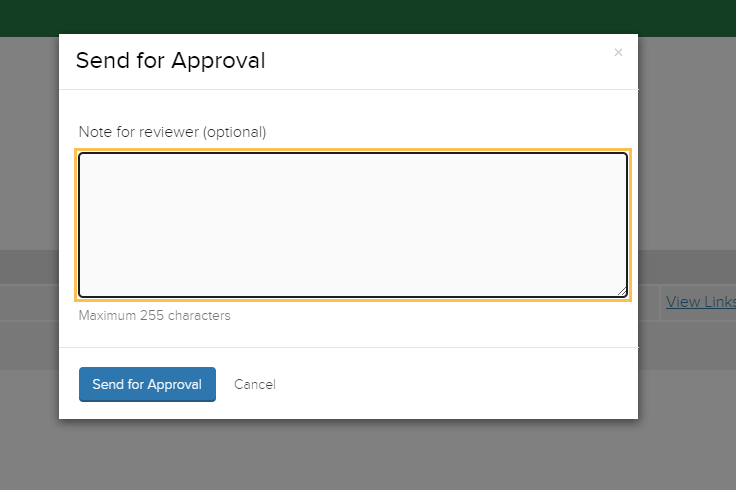
1. Once reviewed, Submit your page for Approval by clicking the orange "Submit" button
This will appear at the top of the Document Details page and the Homepage Designer. Doing so will bring up a Send for Approval dialogue prompting you with an opportunity to include a note for the page reviewer. All faculty and staff will have the ability to review their updates own updates, so a note isn't necessary. All student employees will require a trained faculty or staff member to review their updates to any Document Pages or Homepages; however, including a note is entirely optional.
This is the final step Student Employees will be able to follow, please reach out to your Supervisor for reviewing and publishing your updates.
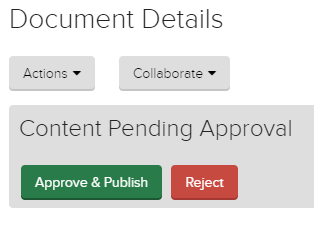
2. After Sending for Approval click the green "Approve & Publish" or red "Reject" button in the top left corner of the page
Once the updates have been sent for approval, faculty and staff members can click the green "Approve & Publish" button on the resulting "Content Pending Approval" banner to move onto the next publishing step, or click the red "Reject" button to cancel the process if you're not ready to publish updates that another employee has submitted to you for review.
After clicking either button an additional dialogue will appear prompting you with an option to provide a note to the submitter related to your Approval or Rejection of their updates.
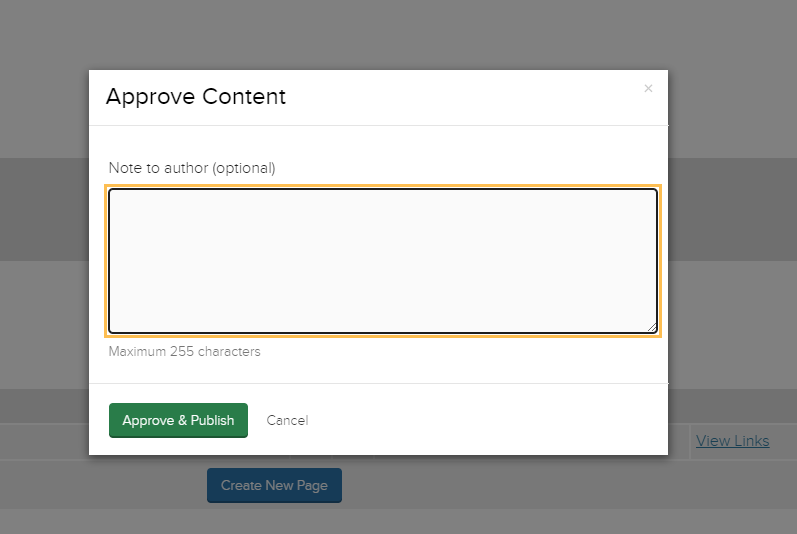
3. Publish the updates by clicking the green "Approve & Publish" button
Once all of the updates are approved, clicking this button on the approval dialogue will publish the updates to the live website. You can view the live website by by selecting the "View Live" option from the "Actions" dropdown menu on either the Document Details page or the Homepage Designer.